
TabCalendar

TabCalendar

Stop guessing at availability. See sold, held, and unavailable windows across the full year — launched from HubSpot Company and Deal records.

Executive summary

Start here before deep docs

What it does, what it doesn't, and what to do next.

Use TabCalendar when your team is managing bookings and holds without a clear view of what's available across the full year.

  • Works from Company and Deal records. Opening the calendar from a Deal shows its associated Company's availability.
  • Three availability states: sold, held, and unavailable. Deal date properties map into calendar layers based on admin configuration.
  • Day detail supports manual holds plus Deal and Note creation without leaving the calendar.
  • Google Calendar import is one-way: events appear as unavailable overlays. Two-way sync is not supported.
  • Setup, limitations, permissions, and troubleshooting are all public before you install.

Best for

  • Teams managing availability across HubSpot Company or Deal records
  • Operators who need sold/held/unavailable status visible in year view
  • Booking workflows where deal dates need to surface as calendar layers
  • Teams that have double-booked because the shared calendar wasn't current

Not for

  • Resource scheduling with automatic conflict resolution
  • Two-way sync with external calendar tools (Google import is one-way only)
  • Availability tracking for custom objects or non-Company/Deal record contexts

What changes

Your team runs this workflow every week. Here's what changes.

Before

Your team checks availability by opening HubSpot, filtering deals, and piecing together what's booked. Holds exist in someone's notes. Double-bookings happen because no one had the full picture before confirming.

After

Launch the fullscreen calendar from any Company or Deal record. Sold, held, and unavailable dates are visible across the year. Deal dates layer in from HubSpot automatically. The picture is complete before anyone commits.

Free evaluation tier available. Install and validate in a controlled portal slice before broader rollout.

Install free in HubSpot → Read docs →

Quick spec

What TabCalendar ships today

Concrete scope before deeper docs.

  • Primary surface: hosted fullscreen calendar.
  • View modes: Year / Month / Week / Day.
  • Status model: sold, held, unavailable.
  • Release posture: Production (controlled access). Production app with public docs, current runtime, and narrow-rollout guidance.
  • Runtime URL: https://calendar.clevercat.app

Fit check

Native HubSpot calendar vs TabCalendar

Use this before you request access or start rollout.

Native calendar is enough when

  • You only need basic date tracking and standard HubSpot calendar filters handle it.
  • Your team doesn't need year view or a sold/held/unavailable status model.
  • Availability planning stays simple enough that native record views handle it.
TabCalendar fits when

  • You need sold, held, and unavailable windows visible across the full year, not just a filtered list.
  • Deal dates need to surface as calendar layers without rebuilding the view each time.
  • Your team launches the calendar from Company or Deal records and wants context in one place.
All scopes documented. Each HubSpot permission TabCalendar requests is listed with a reason before you install. Review scopes →

Visual proof

Real UI proof: year view and day context

Start with the fullscreen calendar itself, then use the flow diagram as supporting context.

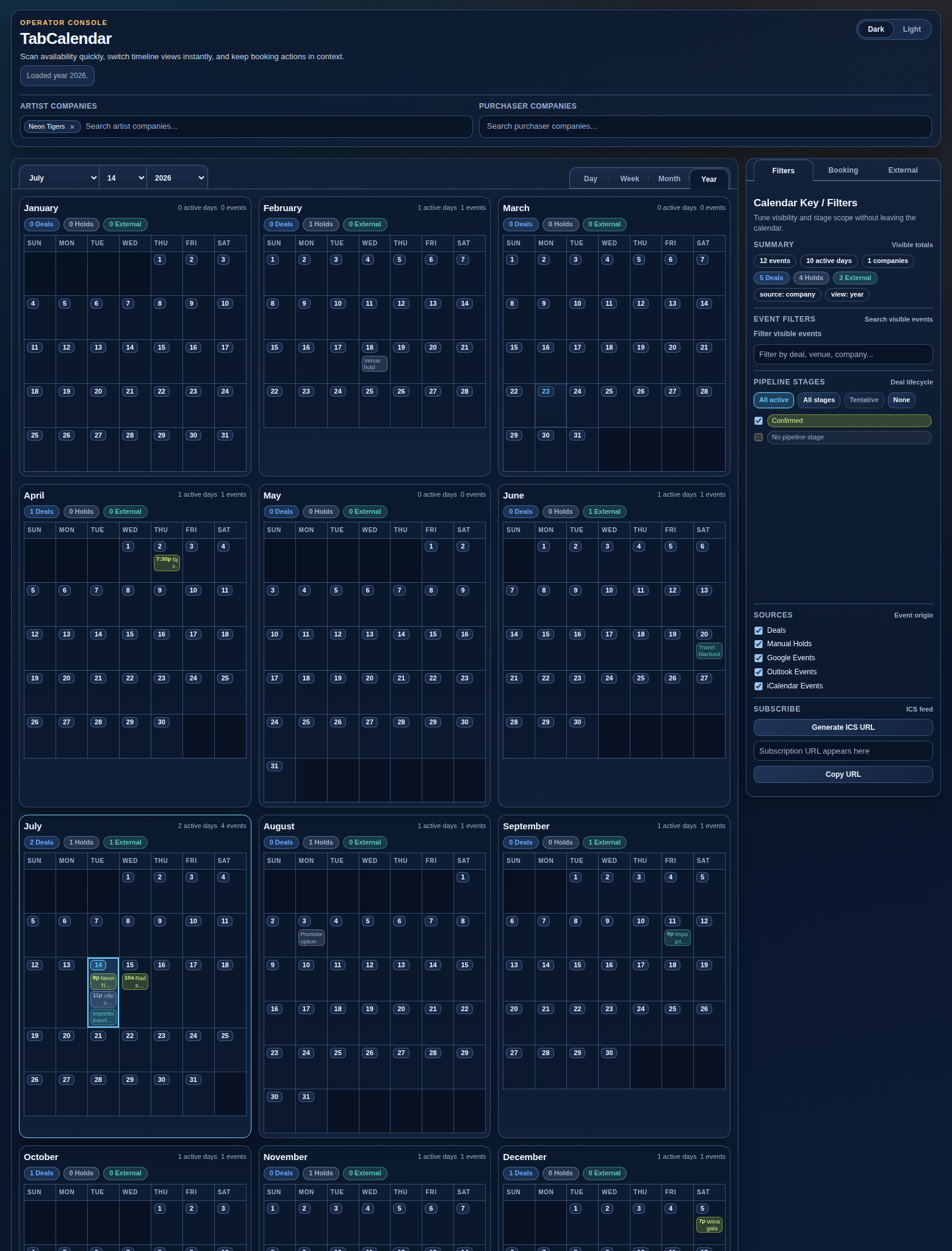
TabCalendar fullscreen year view showing sold, held, and unavailable states across multiple months.
Fullscreen proof: year view, filters, and sold/held/unavailable status layers in the shipped calendar UI.
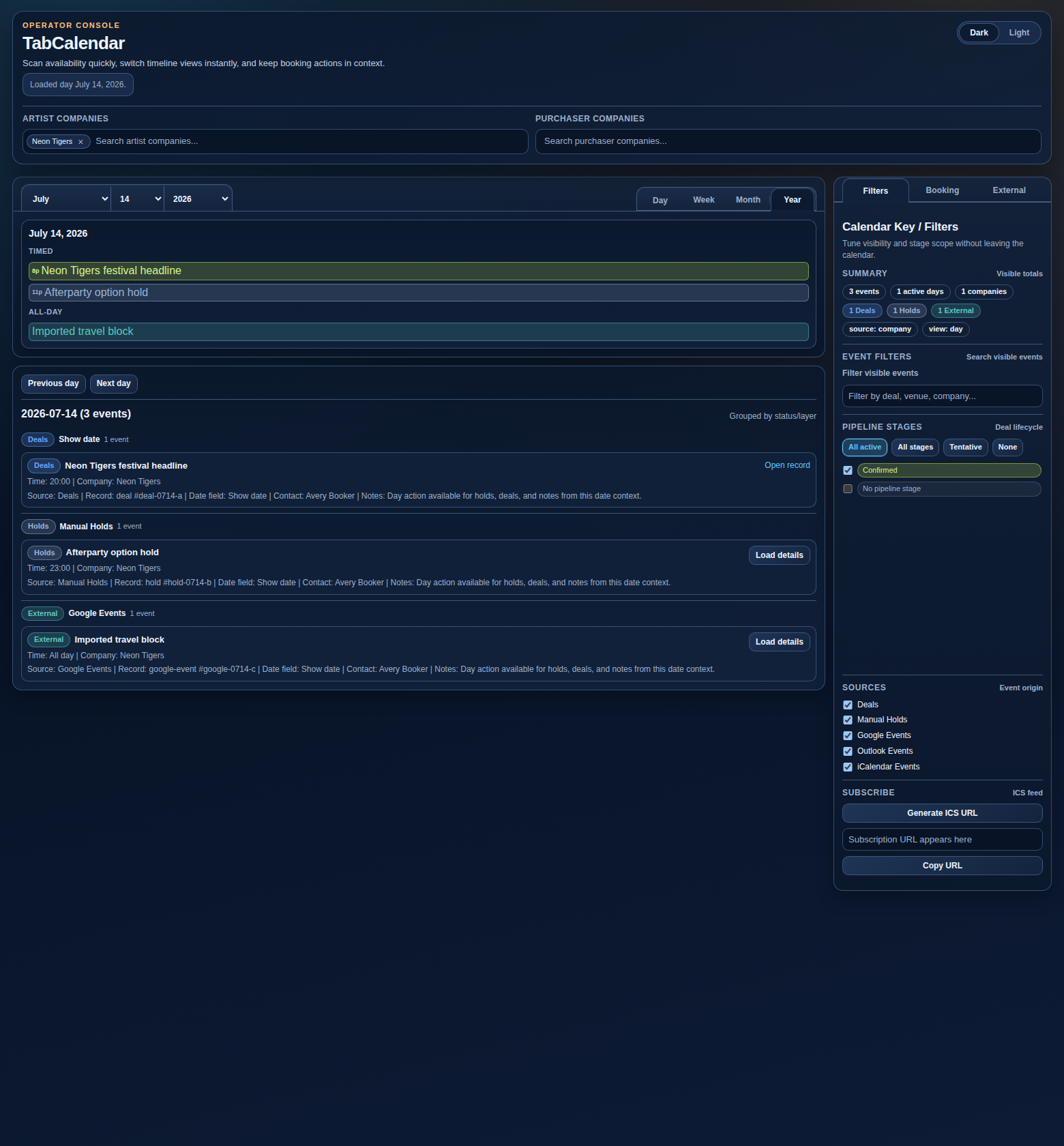
TabCalendar day view showing event context and grouped date details.
Day-context proof: event grouping, date detail, and action-oriented review without leaving the calendar.
Sanitized diagram showing TabCalendar flow from HubSpot record context through hosted fullscreen calendar, multi-view modes, day actions, and optional external subscription/import surfaces.
Supporting operator context: fullscreen launch, day actions, optional ICS feeds, and import-focused Google overlays without claiming bidirectional sync.

Operator proof checkpoints

  • - Fullscreen proof: record tab launches the hosted fullscreen calendar.
  • - View/data proof: year, month, week, and day modes load expected date ranges and filters.
  • - Detail proof: day and event details load from the same calendar context.
  • - Day-action proof: hold, deal-create, and note-create actions complete from day context.
  • - Subscription proof (if enabled): ICS feed generation creates a read-only subscription URL for the selected scope.
  • - Install flow proof: the published install link starts HubSpot authorization and returns to onboarding.

Walkthrough video coming soon. In the meantime, install the free tier and try it in your own portal. Install free →

Shipped behavior

Calendar workflows with explicit boundaries

Claims below align with current TabCalendar docs and runbooks.

Hosted fullscreen calendar

Launch from HubSpot Company and Deal records into a hosted fullscreen calendar. Switch Year / Month / Week / Day views; filters/search persist per browser.

Status model

Uses the canonical status set: sold, held, and unavailable.

Configurable deal-date layers

Admins can map deal date properties to status layers and display priorities without code changes.

Day-level actions

Supports manual holds plus Deal and Note creation from day-level calendar context.

ICS subscription feeds (optional)

When enabled for your portal, generates private, read-only `.ics` subscription URLs that capture the current scope and filters.

Google import overlays

Imports Google Calendar events as read-only unavailable overlays (one-way), including recurring-event expansion to day-level entries.

Docs-first operations

Setup, limitations, scopes, troubleshooting, and changelog docs stay public for rollout decisions.

Free tier available. Install and evaluate in your own HubSpot portal before committing to a paid plan. View pricing →

Operator flow

How teams validate rollout fit

Start narrow, validate behavior, then decide rollout scope.

Install and authorize

Install in HubSpot and complete OAuth authorization for your portal.

Launch fullscreen + confirm view modes

Open a Company or Deal record, launch fullscreen, and verify Year / Month / Week / Day modes.

Configure status and layer mappings

Map deal date properties to sold/held status behavior and display order.

Validate day actions

Run manual hold, deal-create, and note-create actions on test dates.

Generate ICS feed (optional)

If enabled, generate a private read-only subscription URL and validate it in a calendar client.

Connect Google import (optional)

Configure Google calendar mapping and verify one-way unavailable overlays.

Check limitations before expanding

Review setup, limitations, permissions, and release notes before expanding access to your full team.

Use cases

Workflow-shaped use cases

Examples align to rollout tickets for availability planning teams.

Season planning calendar setup

Map deal-date fields to status layers so teams can review sold/held/unavailable windows across the full year.

Day-level hold operations

Use hold, deal-create, and note-create actions during booking triage directly from calendar context.

Import-led blackout management

Overlay Google events as unavailable dates, including recurring entries, before committing new opportunities.

Rollout slice validation

Run one-portal validation against documented limits before deciding wider operational rollout scope.

Scope boundaries

Does | Does not

Out-of-scope items include explicit why and fallback paths.

Does

  • Provide yearly availability context

    Year view shows sold, held, and unavailable context for Company scope (including Deal context).

  • Support day-level create actions

    Manual holds plus deal/note creation support operator-level scheduling actions in context.

  • Import Google overlays (optional)

    Google imports mark unavailable dates via one-way import, including recurring-event expansion at day granularity.

  • Keep scope boundaries explicit

    Public copy and docs keep current boundaries visible for operators and rollout reviewers.

Does not (and fallback path)

  • Include a published HubSpot workflow action

    Why: workflow action remains deferred/unpublished. Fallback: operate with day-level manual actions in record context.

  • Claim bidirectional Google sync

    Why: current integration scope is import-focused for predictable behavior. Fallback: keep source-of-truth updates in Google or HubSpot process controls.

  • Support custom objects or additional record contexts

    Why: current record context scope is Company and Deal. Fallback: launch from a supported Company/Deal record and review limitations.

Docs and trust

Decision-ready links

Use docs first for rollout and support planning.

Docs

Overview, first-run path, and current capability summary.

Setup guide

Install, configure layers, validate actions, and verify import overlays.

Known limitations

Review current boundaries before broad rollout decisions.

Scopes and permissions

Review scope dependencies and least-privilege rationale.

Changelog

Track public docs and rollout-surface changes.

Trust and support

Direct procurement, security, and support answers for controlled rollout review.

FAQ

TabCalendar FAQ for HubSpot operators

Operational answers linked to scope and limitations docs.

Does TabCalendar support custom object workflows?
No. Current scope is Company and Deal record context with canonical sold, held, and unavailable statuses. Review limitations.
Why does TabCalendar request its required scopes?
Scopes cover install authorization plus the Company/Deal/Contact access paths required for calendar context and day actions. See Scopes and Permissions.
What is the uninstall or data deletion path?
Uninstall removes app access from HubSpot. For requests related to CleverCat-stored data, contact support with your portal ID.

Validate TabCalendar in a controlled slice first

One portal, documented checks, clear boundaries — then decide on wider rollout.

Need help evaluating? Ask a rollout question →